![logo_big_darkBG@2x.png]](https://support.bmileisure.com/hs-fs/hubfs/logo_big_darkBG@2x.png?height=50&name=logo_big_darkBG@2x.png)
What Is B2B Router?
B2B Router is an electronic invoicing service that allows you to send invoices and credit notes digitally to your clients. Once configured, you can register any confirmed invoice directly from FAST with a single click.
Before You Start
Before configuring the integration in FAST, make sure you have the following details ready. These will be provided to you by your BMI contact or retrieved from your B2B Router account:
- API Key
- API Version
- Company Account ID
- Environment — whether you are connecting to Staging (for testing) or Production (live invoicing)
Step 1: Add the B2B Router Device in FAST
To enable the integration, you need to add B2B Router as an external invoicing device in FAST.
- Open FAST and navigate to the Devices configuration section.
- Add a new external invoicing device and select B2B Router as the type.
- Fill in the following fields:
| Field | Value |
|---|---|
| API Key | Paste the API key provided to you |
| API Version | Enter the version number provided (e.g. 2) |
| Company Account ID | Paste the company account ID provided to you |
| API Address | See table below |
API Address
| Environment | Address |
|---|---|
| Staging (testing) | https://api-staging.b2brouter.net |
| Production (live) | https://api.b2brouter.net |
Note: The API Version field in FAST will already contain a default value based on the currently implemented version. If the version you received differs from this default, please contact BMI Support before proceeding.
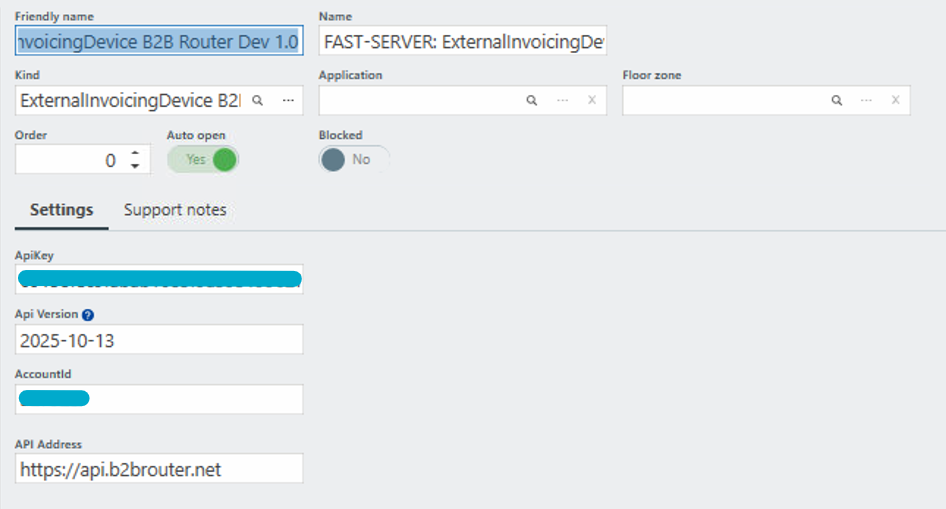
- Click Save to confirm the device.
- Restart the Booking application for the changes to take effect.
Important: This device must be added on every PC where you intend to use B2B Router invoicing.
Step 2: Verify Your Setup
Once you have saved and restarted, the B2B Router device will be active. You are now ready to start registering invoices.
How to Register an Invoice
- Open the invoice you want to register. The invoice must be in Confirmed status — the Documents tab is only available for confirmed invoices.
- Go to the Documents tab on the invoice details screen.
- Click Register Invoice and wait for the process to complete.
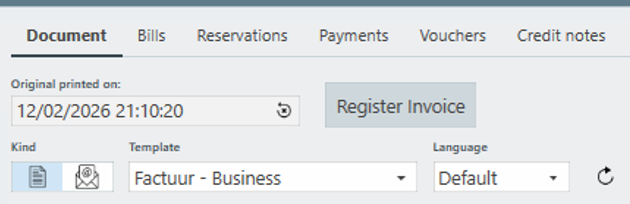
⚠️ Important: When an invoice is registered, it is automatically sent to the contact person linked to that invoice. If you want to test the integration first, change the contact's email address to your own before pressing Register Invoice.
What to Expect
Successful Registration
When an invoice is registered successfully, you will see:
- A confirmation that the invoice has been registered.
- The Reference field in the invoice details will be updated with the B2B Router reference number.
- The Project cross-reference (Xref) is saved automatically.
Registration Failed — Wrong VAT on Contact Person
If the contact person linked to the invoice has an incorrect VAT number:
- The invoice will not be registered.
- You will receive an error notification with details.
- The Project Xref will not be saved.
What to do: Correct the VAT number on the contact person's profile and try registering the invoice again.
Registration Failed — Credit Note Without Original Invoice
If you try to register a credit note but the original invoice has not been registered yet:
- The credit note will not be registered.
- You will receive an error notification.
- The Project Xref will not be saved.
What to do: First register the original invoice, then register the credit note.
Tips
- Always use Production for live invoicing. Use Staging only for testing purposes.
- If you make changes to the device configuration, remember to restart the Booking application.
- Only confirmed invoices can be registered — draft or cancelled invoices will not have the Documents tab available.
Need Help?
If you encounter any issues or have questions about the B2B Router integration, please contact BMI Support.